MRED Blog

REinventing MLS

Elm Street Mastermind Series: Blockchain and its impact on real estate 2.0

Elm Street Academy recently had the opportunity to bring together top thought leaders across the real estate sector to share their viewpoints on ‘Blockchain and Its Impact on Real Estate.’ Due to popular demand, we are taking the conversation to the NEXT LEVEL! Blockchain, crypto, NFT, Metaverse, bitcoin, DeFi, Web3…they may sound like buzzwords, but there is a reason why they are getting so much attention.

In this thought-provoking, 1-hour webinar, Matt Fagioli , Moderator (Operating Partner, BKG™ – Brokerage Atlanta) will be joined by Teresa Grobecker (CEO, Real Estate Consortia ), Chris Tamm (CEO, Ownership Financial and Managing Partner, Cast Services), Sam DeBord (CEO, Real Estate Standards Organization), and Mark Thomas (Co-Founder & CEO, Zen Sports) to discuss digital transactions
in real estate.

This dynamic panel will bring a diverse set of perspectives, offering insight not only into the current impact that blockchain technology is making on the industry, but how to be prepared for what’s to come next.

Friday, April 29th – 2pm ET / 11am PT

Click here to register!

Median sales price reaches new peak

The median sales price among residential listings in MRED’s marketplace hit a new all-time high in April’s second full week:

  • MRED marketplace residential median sales price: $320,000
  • Week-over-week increase: 8%
  • Annual increase: 14%

See all the stats in our Weekly Market Snapshot.

5 Things You Should Know About Private Listings 

Got questions about Private listings? MRED has the answers.  

MRED introduced the Private listing status to connectMLS to give listing brokers more flexibility while working with clients. At the same time, this initiative gives brokers and appraisers access to the data they need to make informed decisions and pull accurate comps. 

Based on many Help Desk conversations with our subscribers, we’ve compiled the following list of 5 Things You Should Know About Private Listings.  

How can you input a Private Listing?

As with a Standard listing, you must have a signed listing agreement from the seller before inputting a Private listing. We recommend having a conversation with your seller about the differences between the types of listings before you choose Private listing status. 

When you’re ready to input a Private listing, follow these steps: 

  1. In connectMLS, go to Listings > Add New Listing.
  2. Select a property type.
  3. For the listing type, select Private Listing.  
  4. Hit Next and fill in the Private listing input fields.

How can you search for Private listings? 

To search for Private listings in connectMLS, click on Search and select General Search from the dropdown.  

  1. Click status to change the status.
  2. Select any or all of the following Private statuses:

There are two key differences between searching for Private listings vs. Standard listings: 

  • Since Private listings have fewer required fields, your ability to filter by certain criteria will be limited.  
  • You will only be able to share Private listings with your clients if the listing broker selected this option. 

How can you transition Private listings to closed status? 

To transition a Private listing to closed status, you must first change it to a Standard listing.  

Follow these steps:  

  • Go to My Listings/Transactions.  
  • Click the pencil to edit.  
  • Select Edit Listing Details/Change to Standard Listing. 
  • Fill in the required fields. (Note: It is critical that you fill in all the required fields upon changing to a Standard listing because this helps us provide you with more accurate data and sales comps.) 
  • For listing date, please use the original date on the listing agreement.  
  • Select Save & Change to Standard Listing. 
  • If the listing passes the rules check summary, you may then select Activate as Closed.  

How can you change the price of your Private listing? 

To change the price of your Private listing, follow the same steps as you would for a Standard listing: 

  • Go to My Listings/Transactions. 
  • Click the pencil to edit.   
  • Select “Edit Listing Status”. 
  • Select “Price Change” from the dropdown menu. 

There are a few differences to note between price changes for Standard vs Private listings:  

  • For Private listings, a price change does not mean the status changes. Your listing will remain in the same status (active/contingent/pending) as it was before the price change. 
  • Price changes for Private listings are not reflected in the history.  
  • NOTE: If you wish to market a Private listing without a listed price, leave the price field blank. Do NOT put a “0” in the field. 

How long can your listing remain private? 

A listing can be Private for as long as the listing agreement allows or until the listing closes, whichever is sooner. The permitted market time for Private listings is determined by the listing agreement you have with the seller. 

As with Standard listings:  

  • Private listings must be entered into the MLS within 48 hours of the list date or within 24 hours of advertising the listing to the general public, whichever happens first. 

As opposed to a Standard listing: 

  • Listing market time will not accrue until the Private listing goes under contract or is transitioned to a Standard listing, whichever comes first. 

If a listing goes under contract while it is a Private listing: 

  • You may leave it as a Private listing while it is pending sale.  
  • Listing market time will begin to accrue based on the list date on the listing agreement once it is transitioned to a Standard listing. 

If a listing closes while it is a Private listing:  

  • You must transition it to a Standard listing. 
  • Listing market time will be determined based on the list date indicated on the listing agreement and contract date. Note: Please verify that the list date on your listing agreement matches what is in the system before transitioning to a Standard listing. 

For any additional questions regarding Private listings, please refer to our Private Listings FAQs, Private Listings white paper, or MRED’s Knowledge Base. If you still have unanswered questions, our Help Desk is always ready to help: 630-955-2755 or help.desk@mredllc.com.  

Listings under contract reach eight-month high

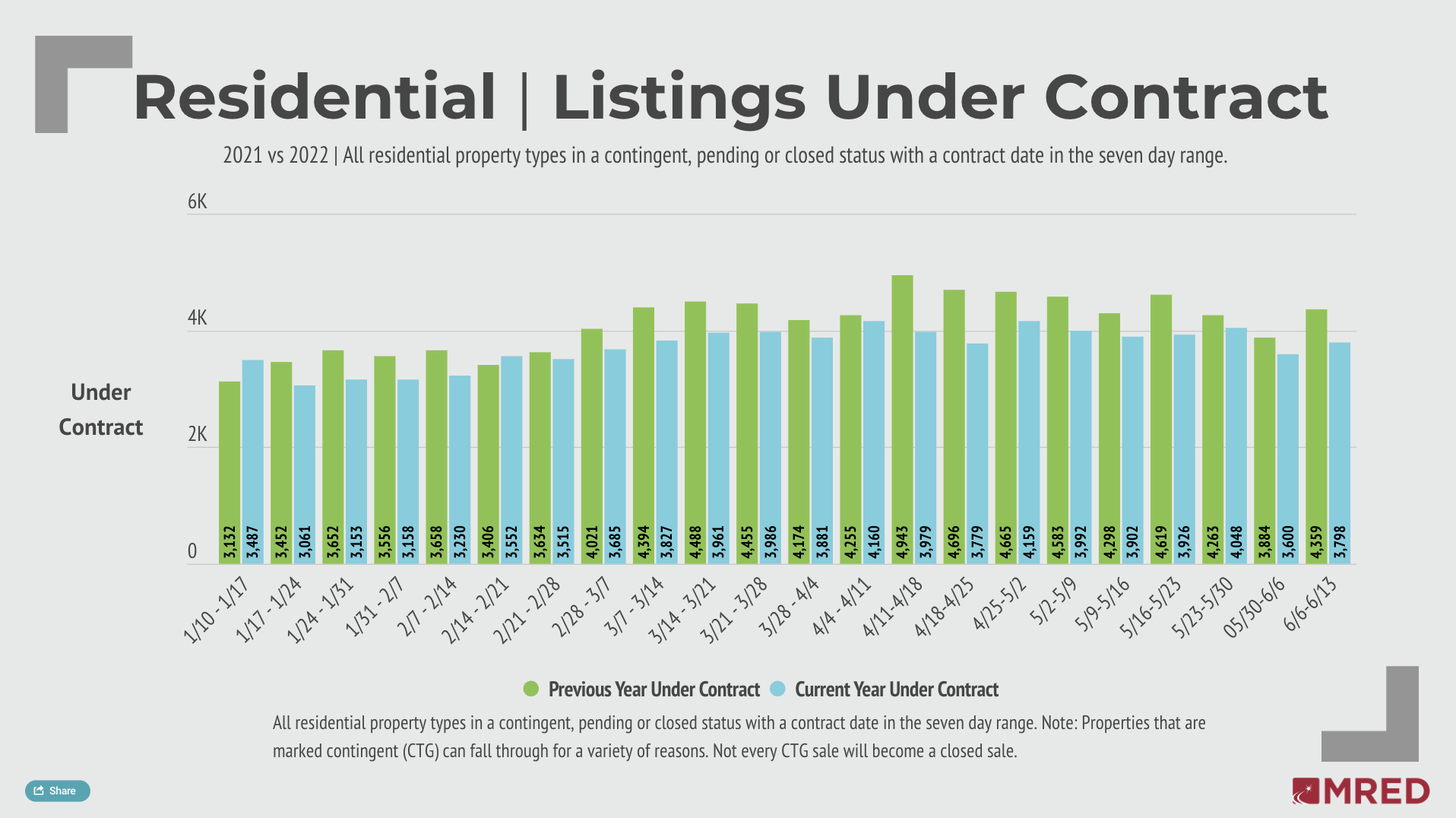
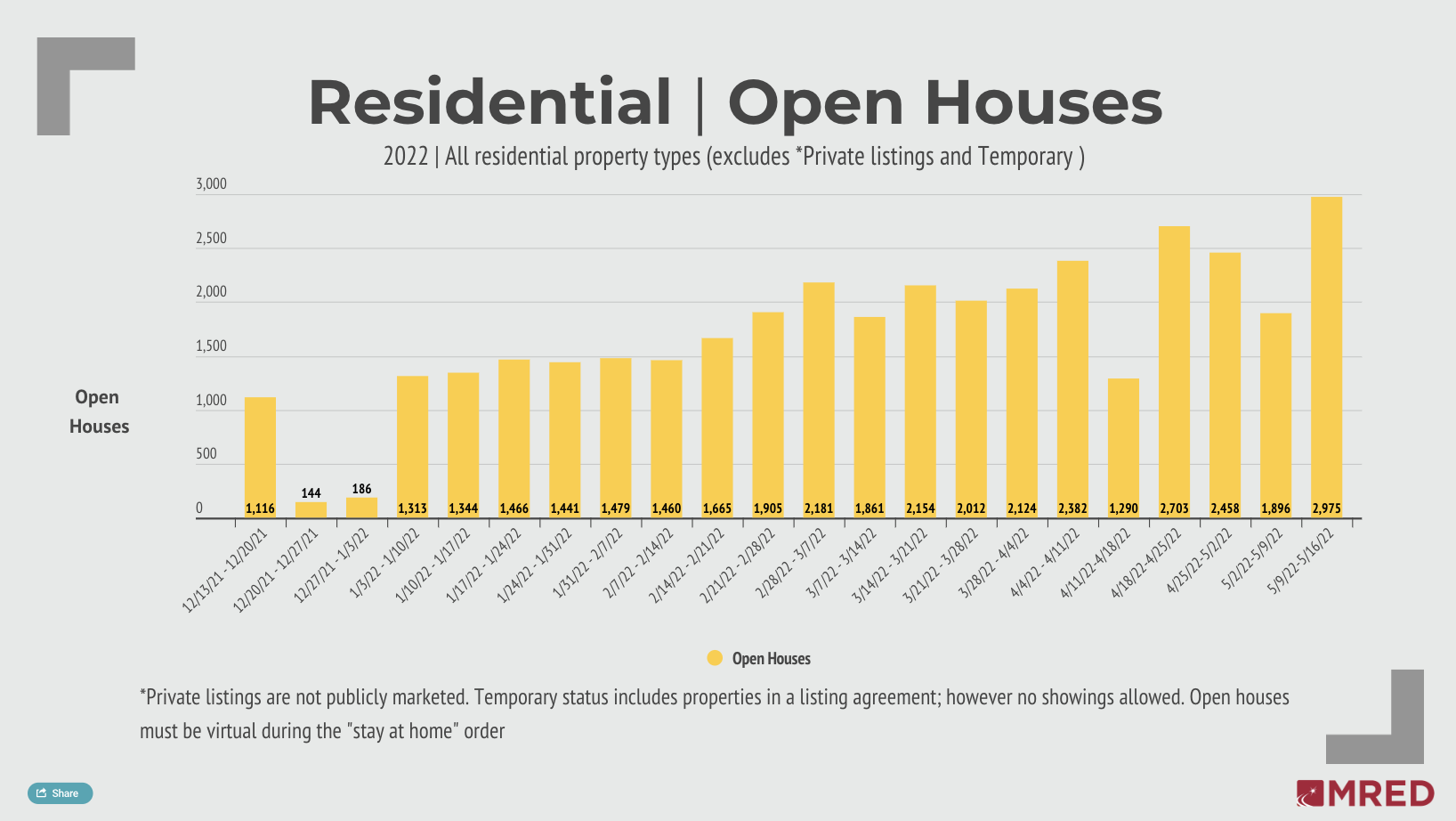
The first full week of April ushered in 2022 peaks in several key metrics. Listings under contract, new listings, total active listings and open houses all topped their previous 2022 highs across MRED’s marketplace. Most notably, contracts jumped 7% to 4,160.

See the trends in our Weekly Market Snapshot.

Surge in listings seen as Spring market heats up

Last week saw an 8% week-over-week increase in new listings across MRED’s marketplace. This bump brought on the second-most new listings in a single week since the new year began. The 5,868 new listings fell 7% short of that metric in the same span from the previous year.

Learn more in our Weekly Market Snapshot.

Feature Spotlight: How to save time inputting listings by cloning drafts of listings

What is the connectMLS clone drafts feature? 

This is an update in connectMLS that helps you save time while creating new listings by auto-populating fields using information you inputted in previous listings as well as drafts of listings. Here’s how it looks on the first page of “Add New Listing”: 

When can you use the clone listings feature? 

You can select the clone listings option when you have already inputted data for a specific address and saved it as a draft or previously had the same property listed on the MLS. 

Why would you use the clone listing feature? 

If you’ve ever created a listing and then had to start over because you used the wrong listing or property type, this feature is for you. You can also use it whenever you’re creating a new listing for any address that has been previously listed on the MLS. If you’re listing several apartment units in separate listings, you can also use this feature to auto-populate the information you already typed in for previous apartment units! This is also a helpful feature for reverse prospecting at different price points for a listing.

The feature fills all the fields you previously completed for a specific property, regardless of the listing or property type you initially selected. When you create a new listing, you can select the correct property and listing type, then select “Auto-populate from MLS data (clone)” to bring in all the fields you already filled out. 


Head over to connectMLS to try it out for yourself!